Guide · 3 min
Send a print to a printer from SpoolBoss
Pick a sliced file and a printer on your phone or computer, and the file lands on the printer. Klipper printers can start printing straight away.
- 01
Keep the Connector open
Files travel through the SpoolBoss Connector on a Windows computer on the same network as your printers. Make sure it is open; minimised is fine.
- 02
Open Send a print
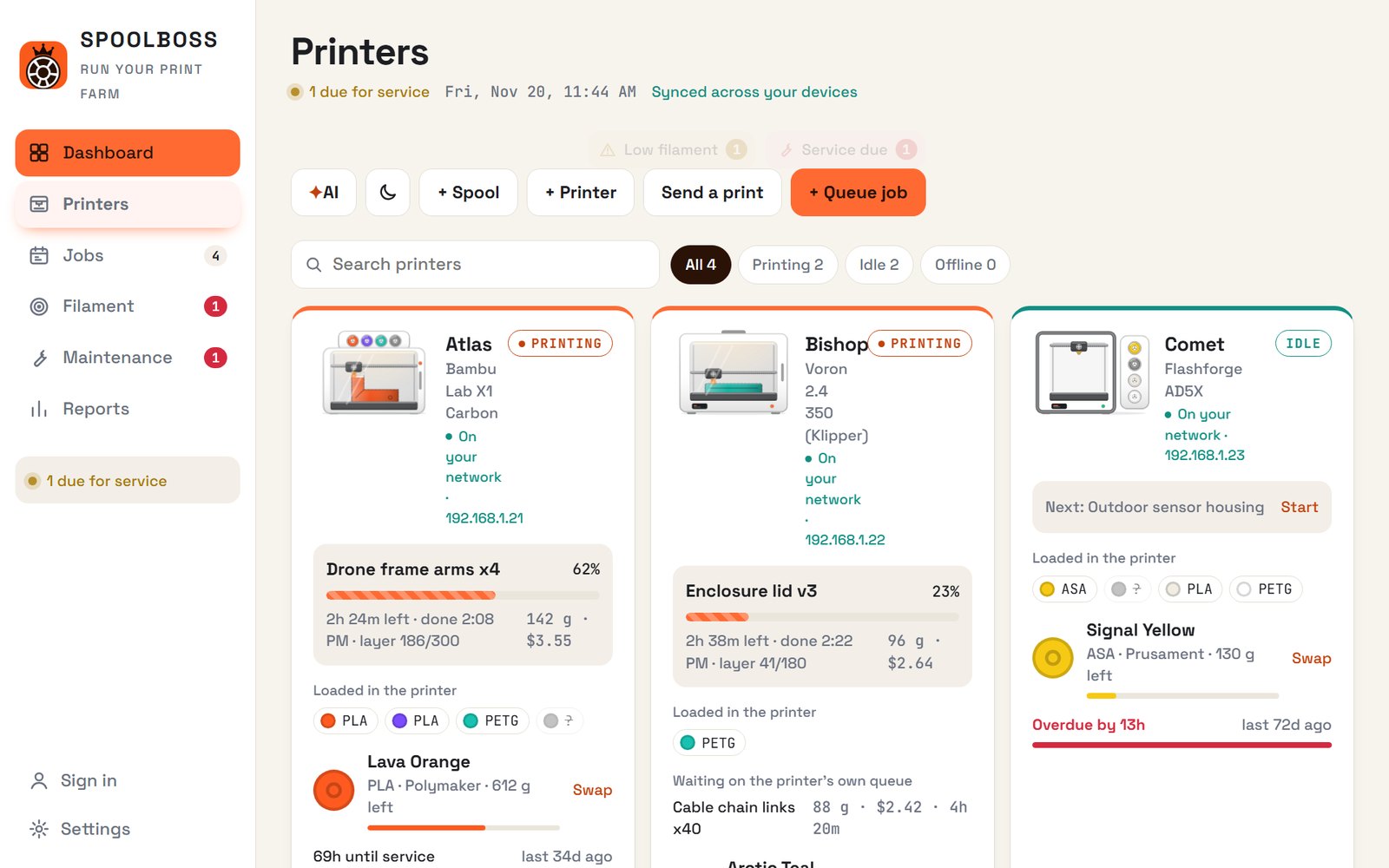
Go to Printers or Jobs and press Send a print. It is also in the menu under Sync and printers.
- 03
Choose the printer and the file
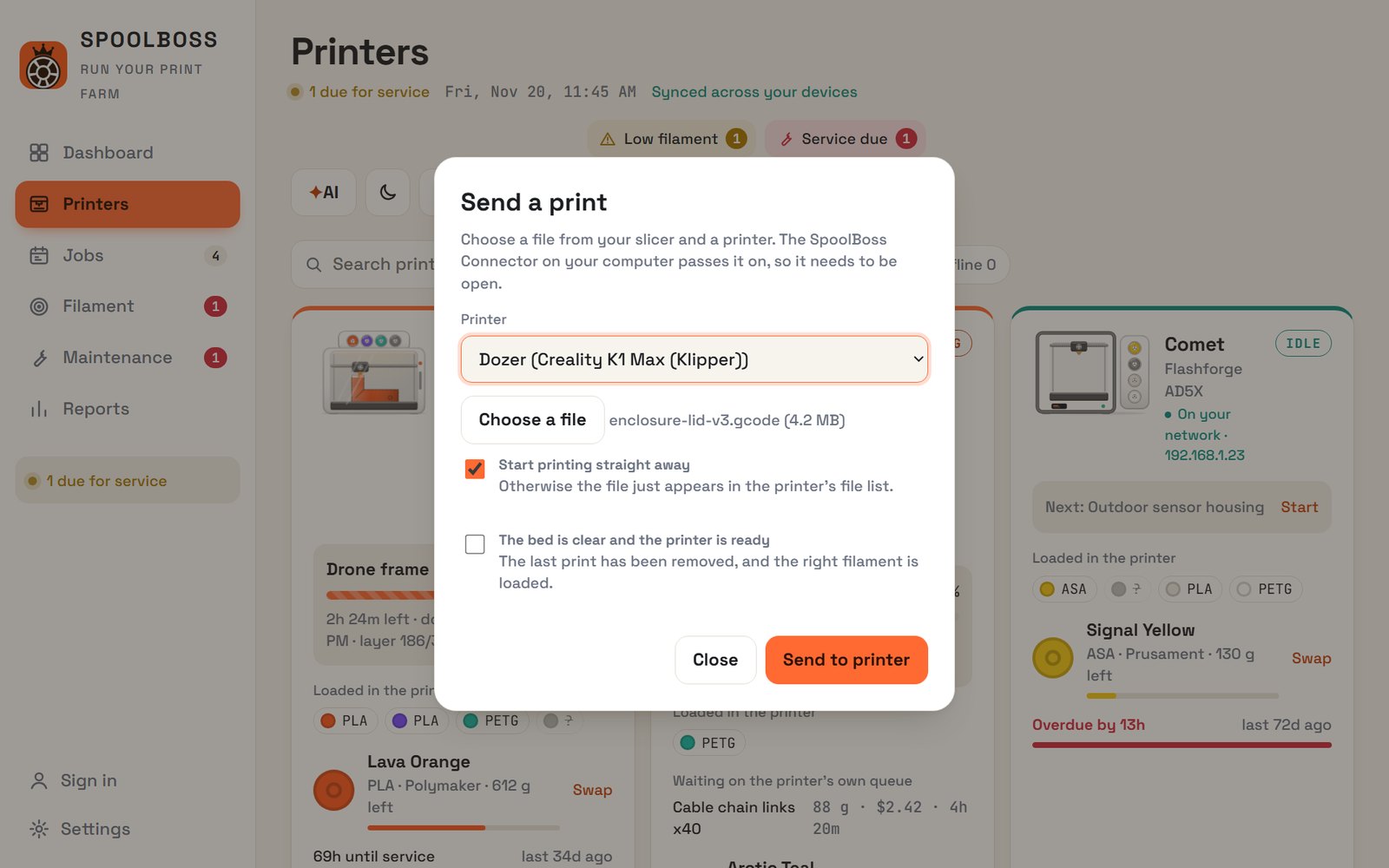
Pick the printer, then Choose a file and select the file your slicer saved. SpoolBoss does not slice models, so it needs the sliced file, usually ending in .gcode.
- 04
Decide whether to start
For Klipper printers you can tick Start printing straight away. You then have to confirm that the bed is clear and the right filament is loaded. Leave it unticked and the file simply appears in the printer's file list.
- 05
Send it
Press Send to printer. You will see the upload, then a message when the printer has the file. It usually takes under a minute.
Next guide: Use SpoolBoss AI